Here is the practical version I would use for a living archive
- Use folders for structure, metadata for search, and albums or collections for temporary grouping.
- Keep the top level broad so the archive stays readable as it grows.
- Name files with dates and context so sorting works automatically.
- Separate originals, selects, exports, and archive material before the library gets messy.
- Back up the structure properly; sync is not the same thing as backup.
Choose a folder model that fits the way you shoot
There is no single perfect structure for every library. The best setup depends on whether you are organising family photos, client work, or a mixed creative archive with stills, thumbnails, and campaign assets sitting next to each other.
| Model | Best for | Strengths | Watch-outs |
|---|---|---|---|
| Date-based | Personal archives, travel, events, long-term storage | Chronological, predictable, easy to scale | Can feel vague if you need subject-based recall |
| Project- or client-based | Freelancers, agencies, production teams | Clear delivery logic, easy handover, easy billing | Needs discipline when similar jobs repeat |
| Hybrid | Most creators and small teams | Balances chronology and context | Only works if naming stays consistent |
If I were building a personal archive, I would start with dates. If I were managing assets for client work, I would use a hybrid system: year first, then project or event, then a small set of status folders. That gives you chronology without losing context, which matters once you start storing camera originals, selects, exports, and social crops in the same library. Once you choose the model, the next decision is how deep the tree should go before it becomes annoying to use.
Build a hierarchy that stays readable as the archive grows
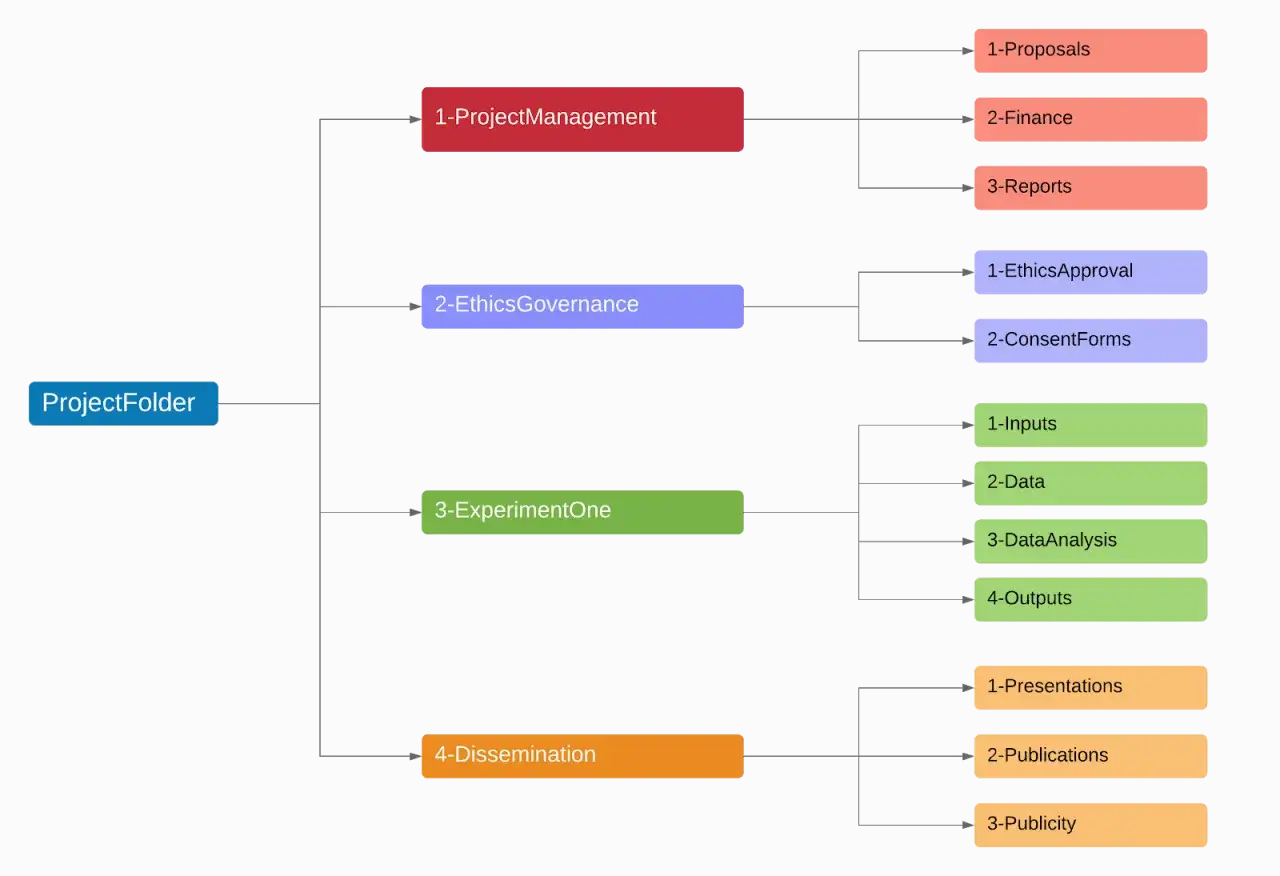
I prefer a shallow tree. Three levels is usually enough, and four is the practical limit before people stop using the system properly. Beyond that, you are no longer organising files; you are hiding them.
- Top level: broad buckets such as personal, client, campaign, archive, or source files.
- Second level: year or client name.
- Third level: event, shoot, or project name.
- Fourth level: only when you need status folders such as RAW, selects, exports, or masters.
Photos/
  2026/
    2026-04_London-Brand-Shoot/
      01_RAW/
      02_Selects/
      03_Exports/
This kind of structure works because the folder name carries context, the date carries order, and the subfolder carries workflow. If you use month folders, I recommend prefixing them with numbers so sorting stays automatic. The structure only works if the names themselves are predictable, which is where filenames come in.
Use file names that still make sense outside the app
My rule is simple: make the filename useful to a human and sortable by a machine. ISO-style dates work well because they sort correctly in Finder, Explorer, and most DAM tools.
| Pattern | Example | Why it helps |
|---|---|---|
YYYY-MM-DD_subject_location_sequence.jpg |
2026-06-18_team-portrait_london_001.jpg |
Sorts chronologically and still says what the file is |
client_project_status_v01.psd |
acme_spring-launch_selects_v03.psd |
Makes versioning obvious in team workflows |
I usually stick to one separator, either a hyphen or an underscore, and I do not mix styles inside the same library. Spaces are not a disaster, but consistency matters more than style. The important part is to avoid vague names like IMG_4829, final_final2, or new folder. Those names feel harmless when you are in a hurry and become expensive later, especially when you are searching for a specific shot months after delivery. After naming, I clean the import before I file anything deeper.
Clean the import before you file anything
The fastest way to create a mess is to start sorting a dirty import. I always do a quick cull first, because duplicates, blurred frames, and accidental screenshots only make the folder system harder to trust later.
- Copy everything into a staging folder first, not into the final archive.
- Remove obvious rejects, near-duplicates, and empty bursts.
- Separate camera originals from selects and finished exports.
- Move keepers into the correct project or event folder.
- Rename and tag in bulk only after the structure is stable.
RAW files are the untouched camera originals; they are not the same thing as edited masters or JPEG exports. I keep them separate because it makes re-editing much easier later, especially for client work where a crop, thumbnail, or banner image may need to be regenerated. If you manage video stills as part of a wider content workflow, that separation matters even more because one shoot can produce footage frames, social crops, preview images, and delivery-ready exports. Once the import is clean, folders stop acting like a dumping ground and start acting like a storage layer.
Let metadata do the heavy search work
Folders are good at answering one question: where does this file live? Metadata is what answers the useful questions: what is it, who is it for, where can it be used, and when should it expire. That distinction is the heart of digital asset management.
| Layer | Best role | What it solves | Limitation |
|---|---|---|---|
| Folders | Long-term storage structure | Predictable navigation and file placement | Poor for items that belong in more than one category |
| Metadata and tags | Search and retrieval | Find by subject, client, location, rights, or status | Needs discipline and a controlled vocabulary |
| Albums or collections | Temporary grouping | Proofing, shortlists, storyboards, presentations | Does not replace the storage structure |
For a shared library, I prefer a controlled vocabulary for the fields that matter: client names, project names, usage rights, status, and location. That simply means everyone uses the same approved terms instead of inventing their own spellings and abbreviations. It is a boring rule, but it pays off when search becomes the only sane way to find older assets. The last layer is protecting the archive so a good structure does not get wrecked by sync mistakes or hardware failure.
Protect the archive with backup and sync rules
A neat folder tree is useless if one bad sync wipes out half a shoot. I treat backup and sync as separate jobs. Sync keeps devices aligned; backup gives you a recovery path when something goes wrong.
- Keep one working copy on a fast local drive or SSD.
- Keep one second copy on another drive or NAS.
- Keep one off-site copy in a cloud backup or another location.
- Test a restore regularly, ideally once a month or after a major project.
This is why I am careful with cloud folders that mirror deletions instantly. They are convenient, but convenience can be dangerous when an accident gets propagated everywhere at once. If several people touch the same archive, I also separate current work, approved files, and closed projects so permissions stay sensible. Even with good backups, there are a few habits that quietly destroy the usefulness of the system.
The mistakes that make photo folders useless
Most broken libraries do not fail because the idea of folders is bad. They fail because the rules are too vague to survive real work.
- Too many top-level folders: if the main screen is crowded, nobody will file consistently.
- Generic names: folders called Misc, Stuff, or New only delay the real decision.
- Mixed contents: originals, exports, social crops, and drafts should not sit together by accident.
- No version rule: final, final2, and final-really-final create avoidable confusion.
- Folder-only thinking: a folder tree without metadata becomes fragile as soon as the archive grows.
I also see people move files manually inside a syncing app without understanding how the software tracks them, and that is where duplicates and missing references start. The safest habit is to decide the workflow once, then repeat it every time. If the rule feels too complicated to remember on a busy day, it is too complicated. The system should make you faster, not make you think harder every time you import a shoot.
A simple structure that scales without drama
If I had to start from zero today, I would keep the folder tree shallow and let metadata carry the detail. My default structure would be: one root library, one year or project layer, one event or client layer, and a small set of status folders for RAW, selects, exports, and archive.
That is enough for most personal libraries and still disciplined enough for creator workflows, client delivery, and DAM-style asset management. The best folder system is the one you can keep using when you are tired, busy, and importing another batch late in the day. Keep the tree shallow, name things consistently, and let search do the rest. That is what turns a photo collection into something you can actually rely on.